Homepage
The New Mexico Public Regulation Commission (NMPRC) Public Portal allows users to view, search, and submit filings or comments online.
This guide provides step-by-step instructions for navigating and using the portal's main features, including the Dashboard, Advanced Search, Registration, Login, and more.
1. Homepage Overview
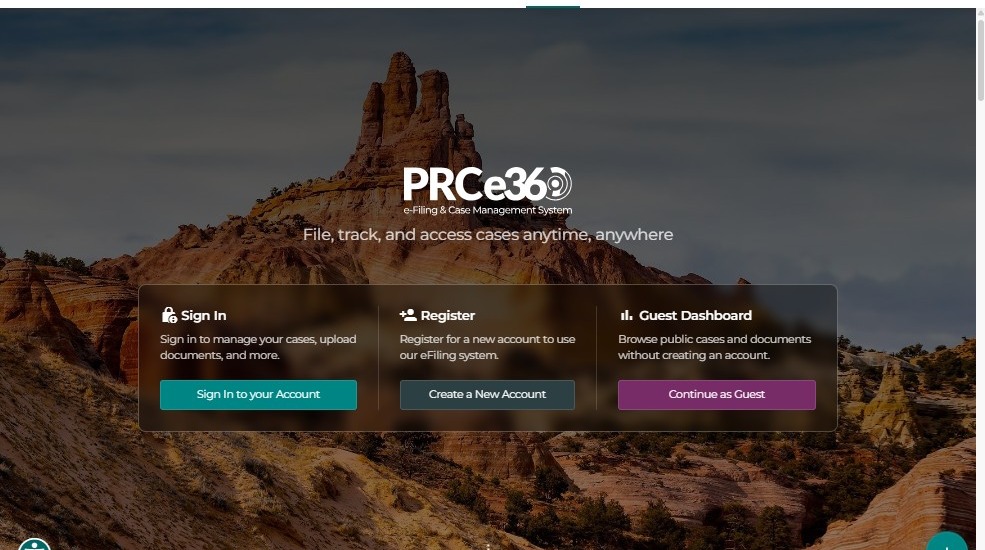
When you visit the NMPRC Online Portal, the system displays the Homepage.
From here, you can access the Dashboard, Register or Log In, submit new comments, or review available Dockets and filings.
2. Dashboard
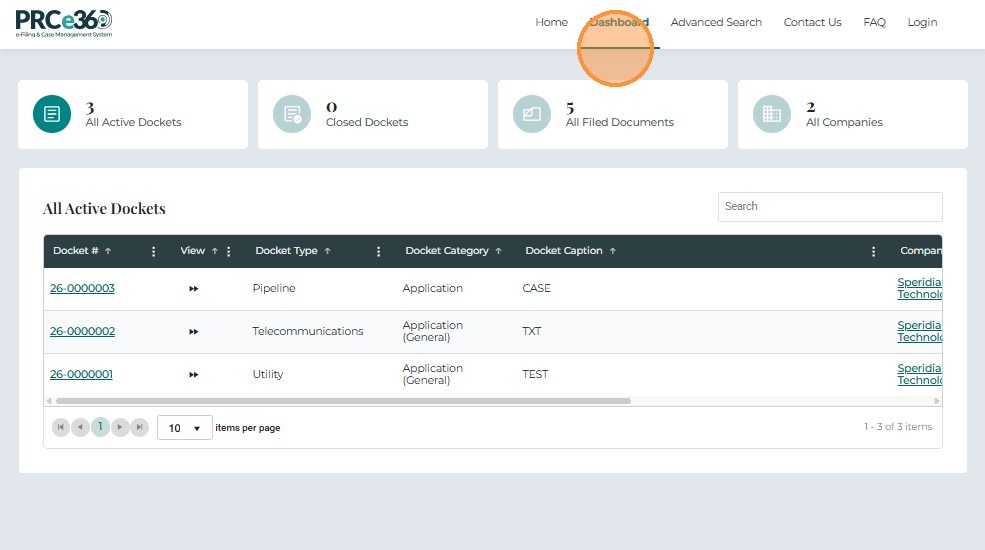
Click on Dashboard whether from the Homepage button or the top Navigation Bar, and you can see four different tabs that include All Dockets, Closed Dockets, All Filed Documents, and All Companies.
2.1 All Dockets
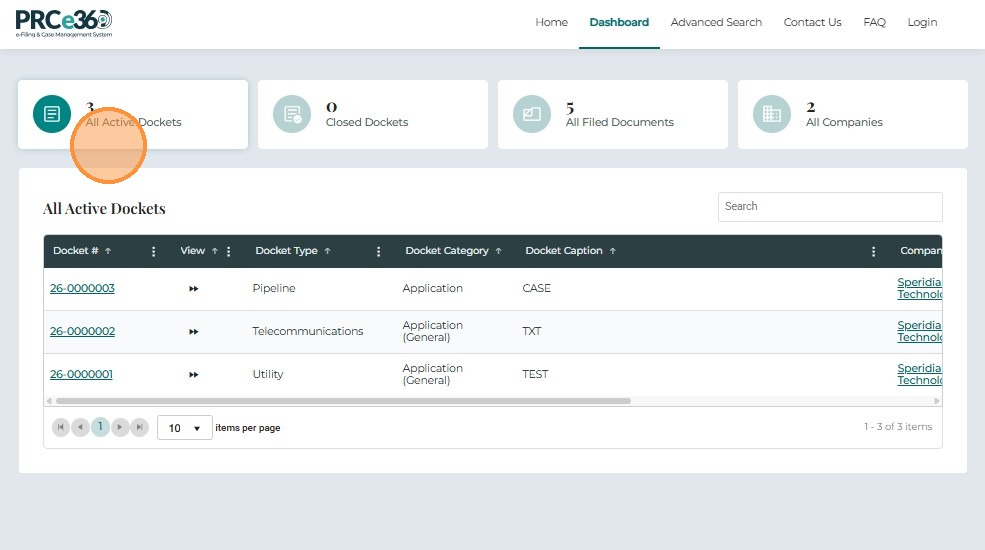
The All Dockets tab displays a list of all the Dockets submitted in NM PRC. The grid displays information like Docket Number, Docket Type, Docket Caption, Company, and other related details including Date and Timestamps. Users can also search for a Docket using the Search field.
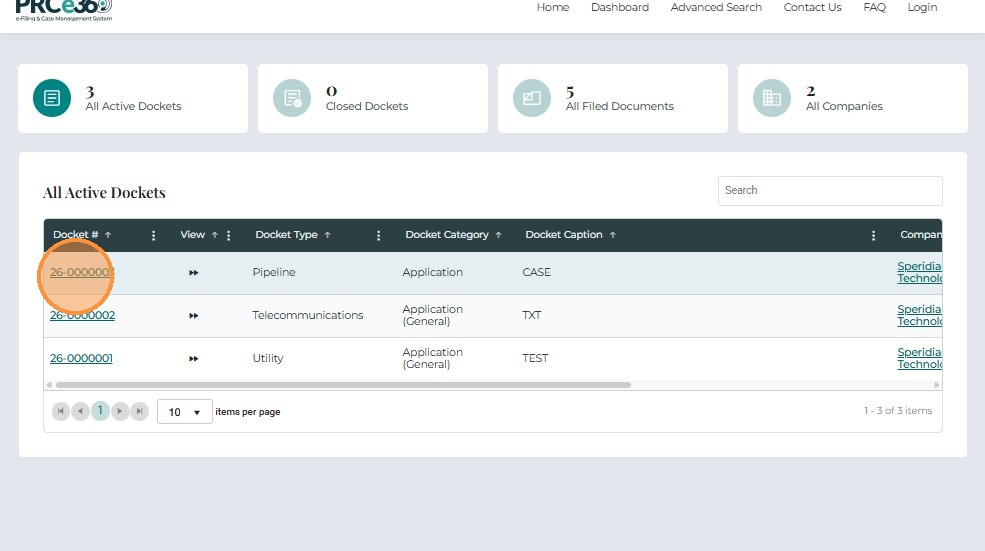
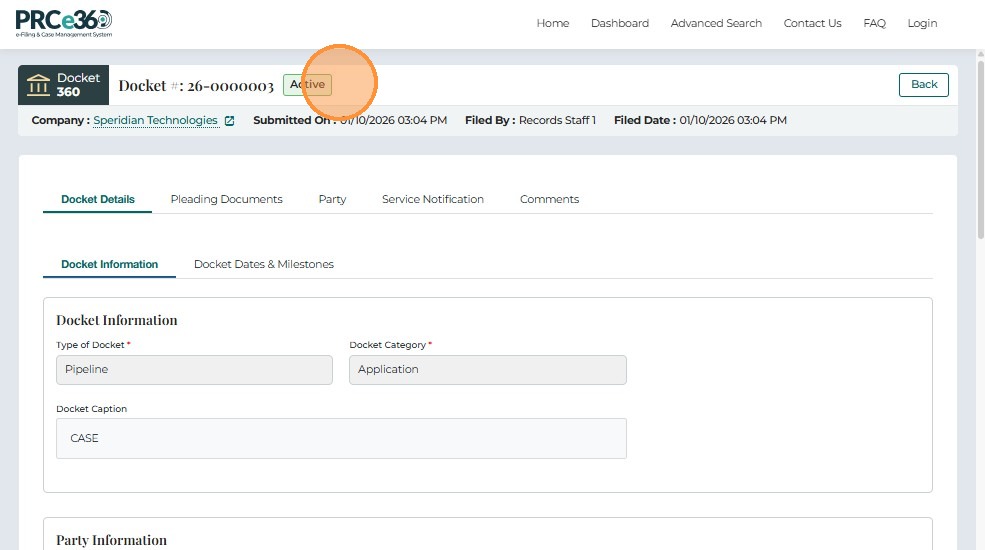
Case 360: The Docket ID is clickable. When clicked, the user is redirected to a Case 360 View with further tabs like Docket Details, Pleadings, Party, Service Notification, and Comments. The Case 360 top panel displays Docket Number, Status, Company, Filer Name, Date of Submission, and Filing.
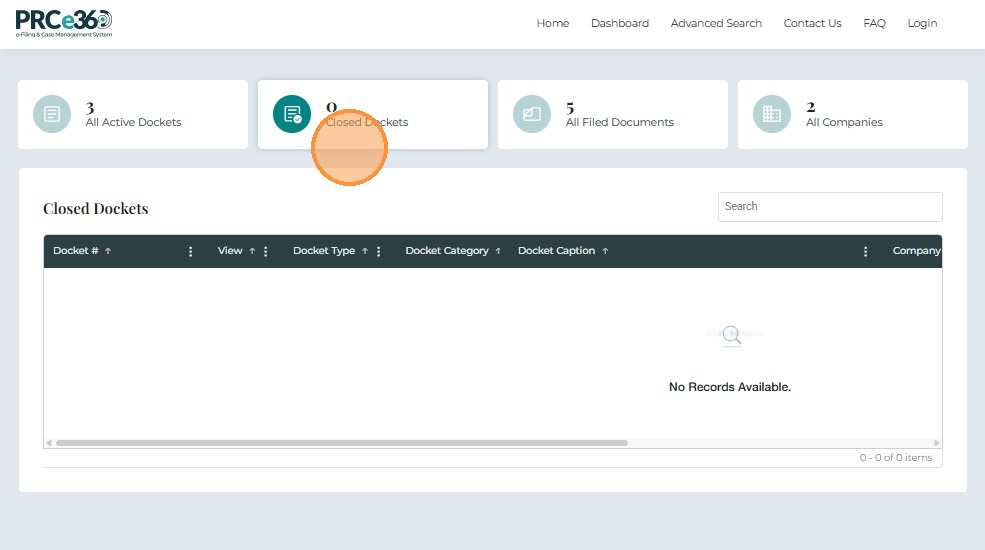
2.2 Closed Dockets
This tab displays all the Dockets that are Closed. Users can use the Search field to search for any Closed Docket.
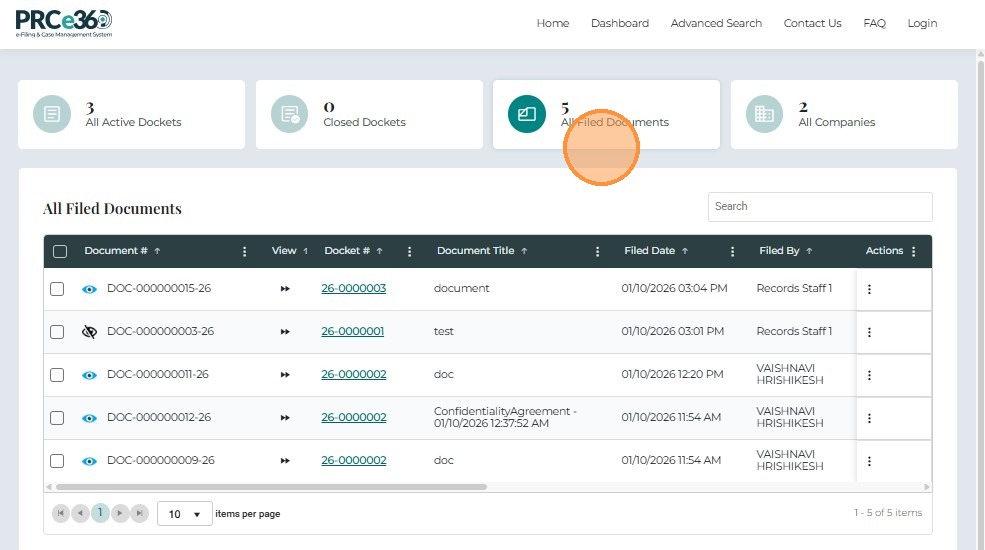
2.3 All Filed Documents
This tab displays all the Filed Documents. The grid displays information like clickable Document ID, Docket # to which the Document was filed, Document Title, and other related information like Date and Timestamps, Filer Name or Company, etc.
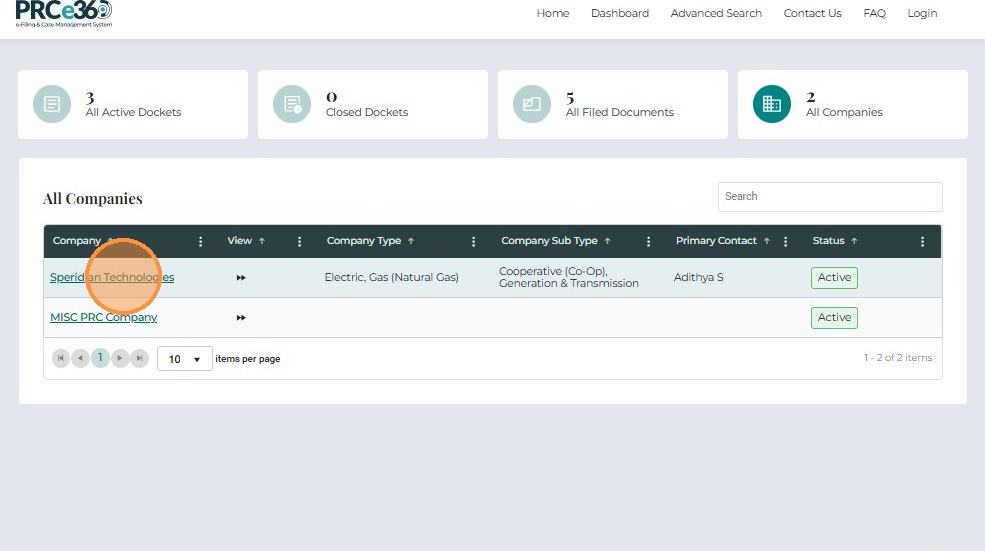
2.4 All Companies
This tab displays all the companies. The grid displays Company Name, Type, SubType, Primary Contact, and Status of Company.
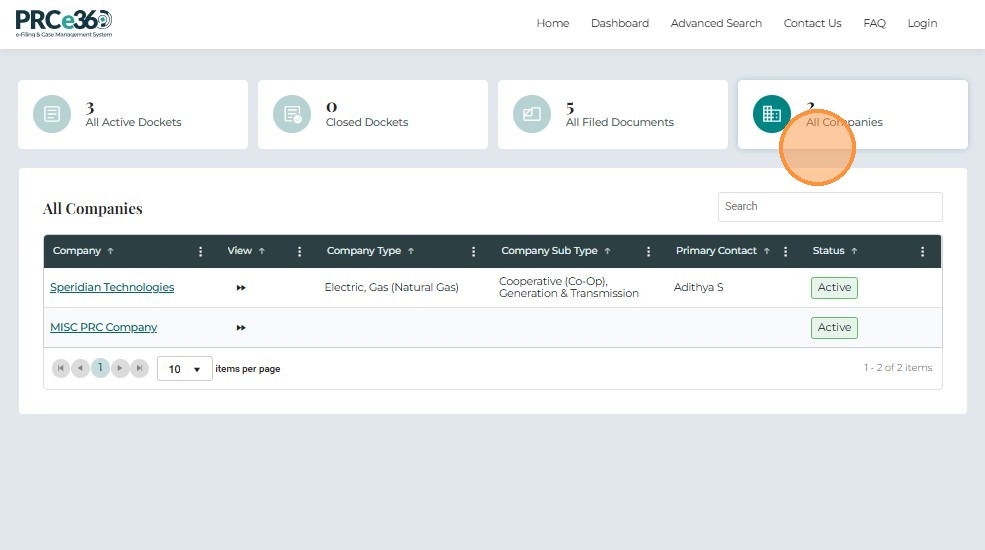
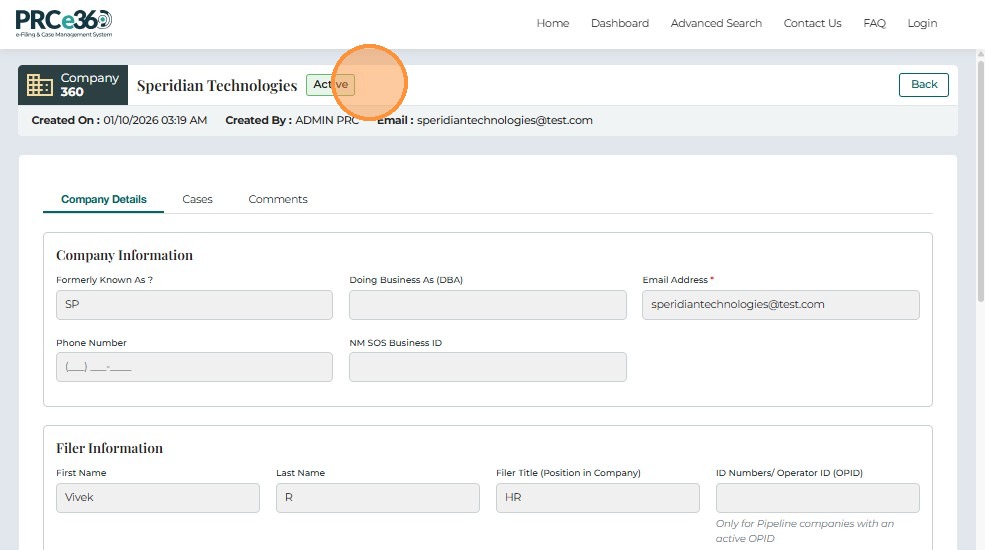
Company 360: The Company Name is clickable. Upon clicking, it opens up a 360 view of the company that includes Company Information in the Company Details tab, Dockets tab, and Comments tab.
3. Advanced Search
The Advanced Search feature is available on the dashboard. Click on the Advanced Search button, and it will display fields to apply filters to your search.
Users can search by Docket Number by adding a Docket Number and then clicking on the Search button.
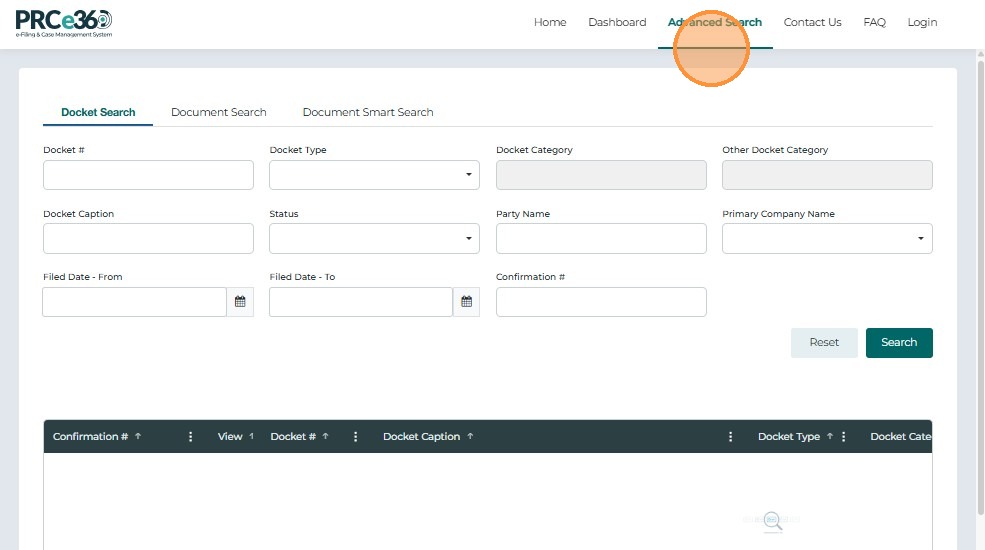
Users can also filter search by Complaint Type. Select any Complaint Type from the dropdown that you want to search.
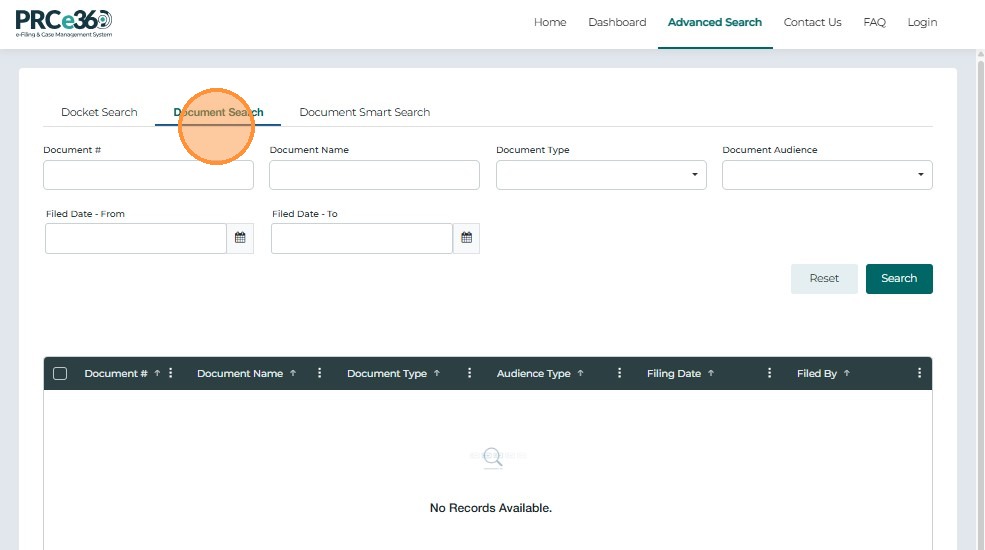
Users can also search and filter by Document ID or type
Users can also search for documents through smart search by giving a prompt to describe the document
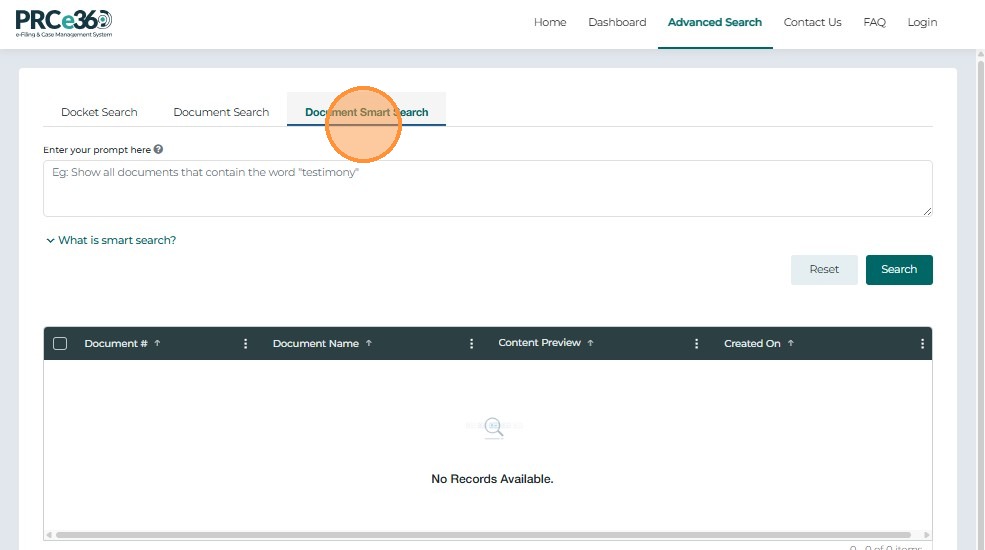
For detailed Advanced Search features, refer to the Advanced Search guide.
4. Submit New
The Submit New button is available at the bottom of the page.
![Submit New Button]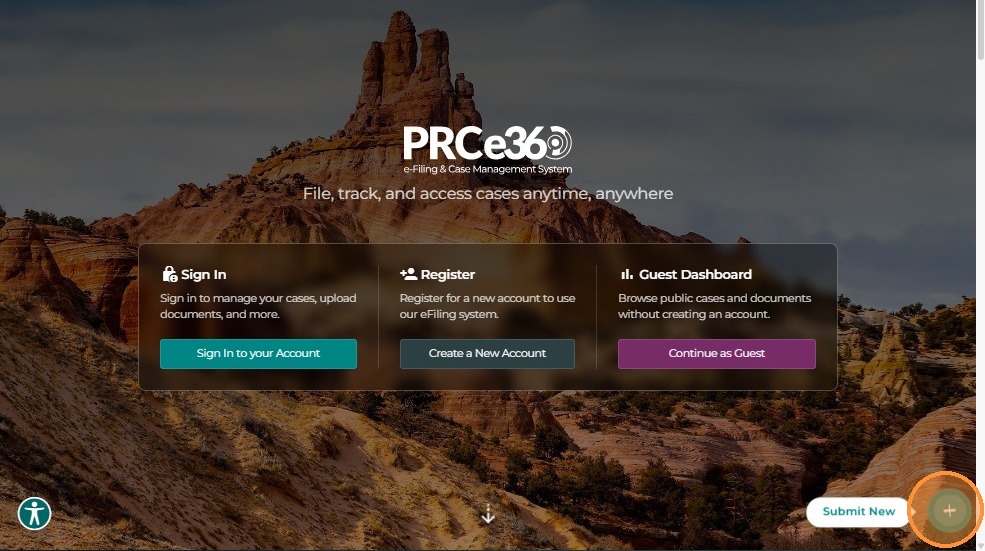
Click on this button, and it will display three options:
- File an Informal Complaint
- Submit New Rulemaking Comment
- Submit Public Comment
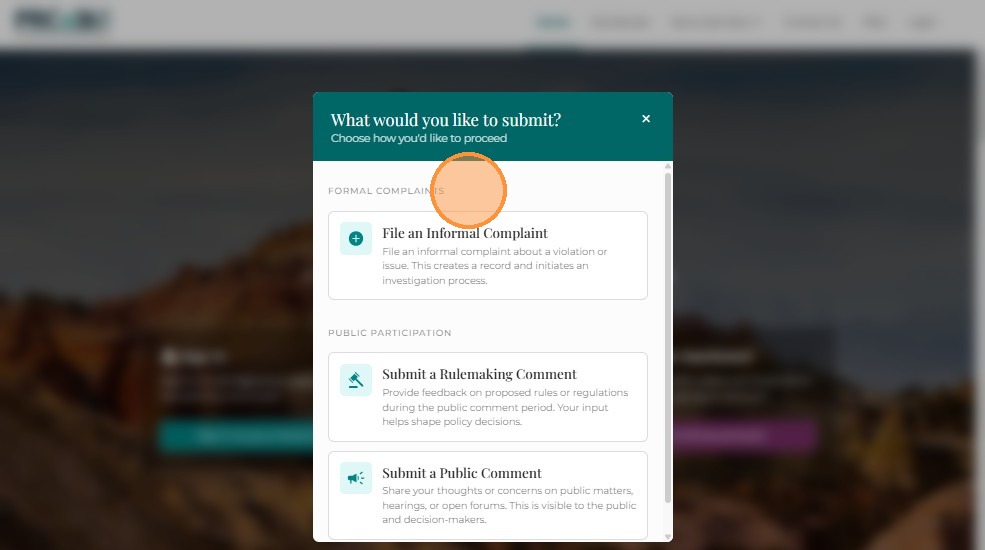
Refer to the following guides for the complete process of submitting Rulemaking and Public Comments:
- Submit Rulemaking Comment: Creating Rule Making Comment
- Submit Public Comment: Create New Public Comment
- **File an Informal Complaint will redirect the user to NM PRC page to file a complaint
5. Register
Click on the Register button on the Homepage, and the user is redirected to a User Registration page.
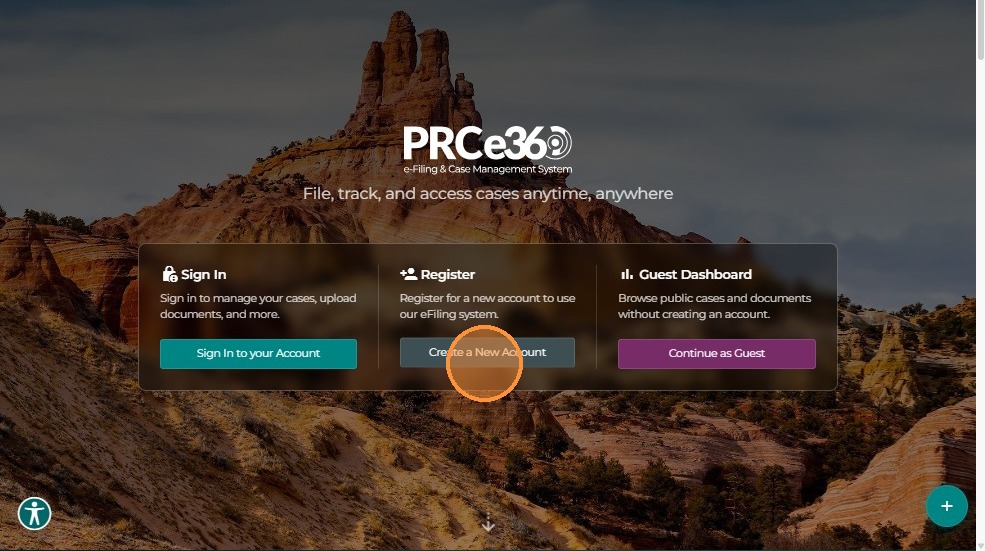
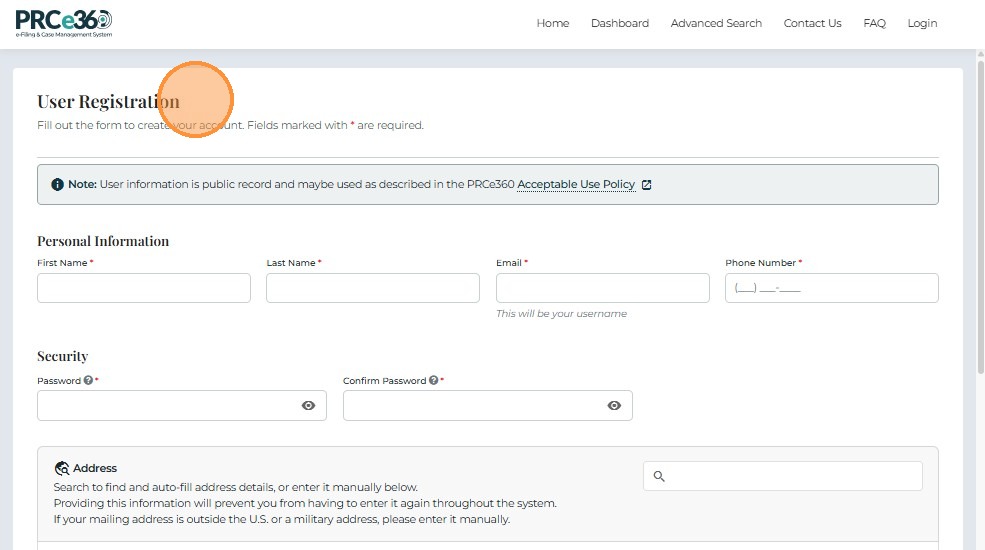
For detailed registration instructions, refer to the New User Registration guide.
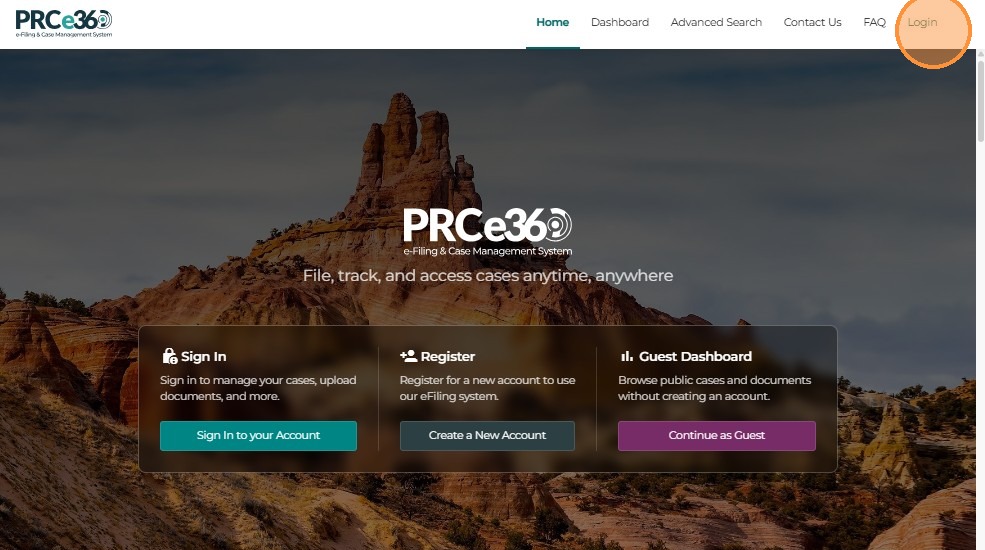
6. Log In
Click on the Log In button on the Homepage, and the user will be redirected to a login page where they can enter their Username/Password and Email and Log In.
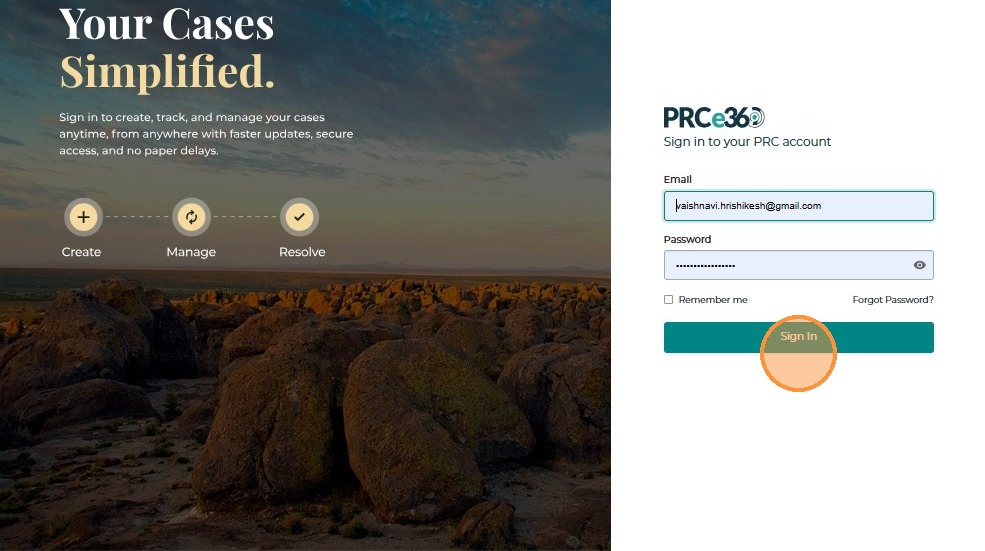
For further processes after logging in, refer to the Dashboard For Tier 1 and 2 Users guide.
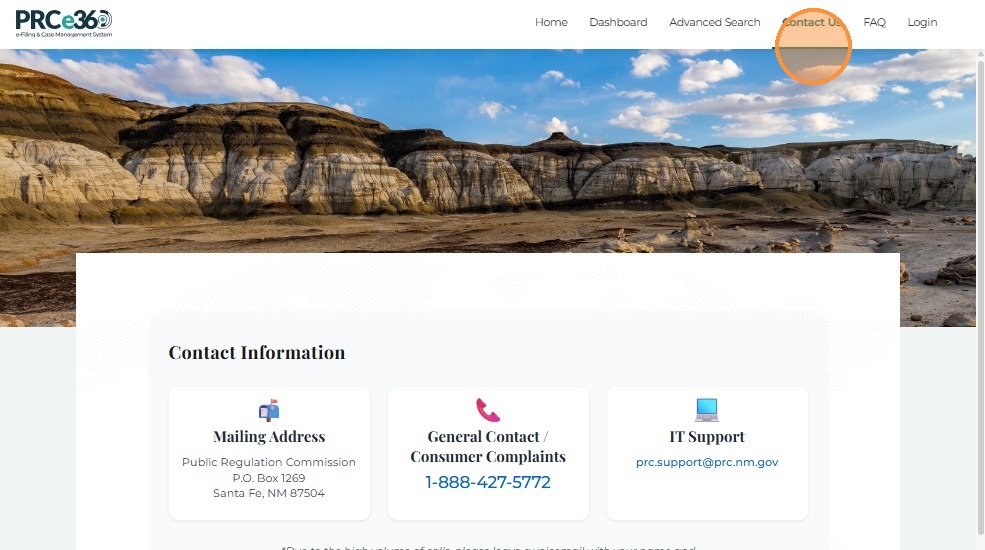
7. Contact Us
Click on the Contact Us button from the Navigation bar, and it will display Contact Information.
8. FAQ
Click the FAQ button from the Navigation bar.
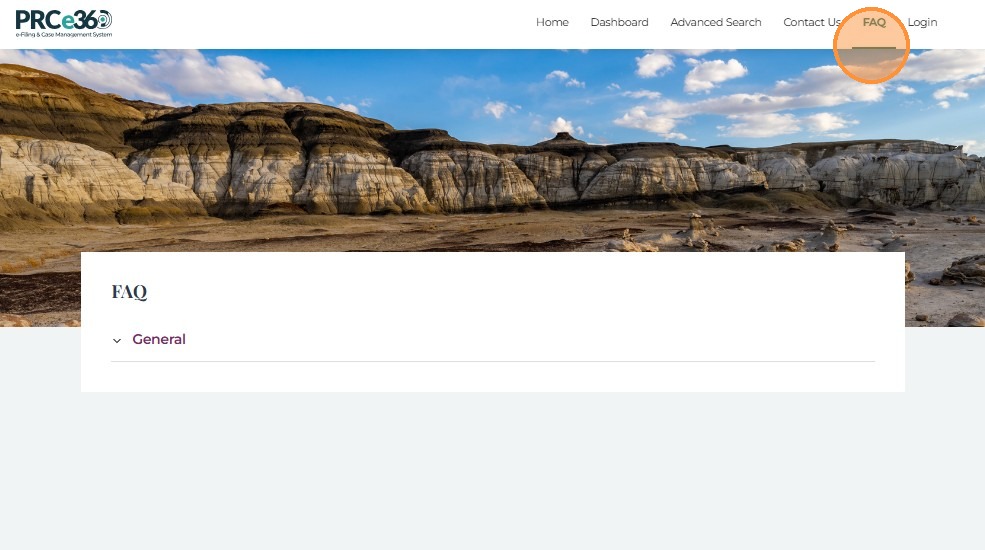
Click on the FAQs-NM PRC link, and the user is redirected to a detailed FAQs page. This page contains answers to questions commonly asked by New Mexico utility customers.
Note: For detailed answers to common questions about using the Public Portal, see the FAQ page in this user guide.

Next Steps
Now that you've explored the homepage, here's what you can do:
If You're New to the Portal
- Quick Start Guide - Find your path based on what you want to accomplish
- New User Registration - Create an account if you need to file complaints or requests
- Glossary - Understand key terms used in the portal
If You Want to Browse
- Dashboard Overview - Learn about the dashboard features
- Advanced Search - Search for specific dockets or documents
- Viewing Dockets - Learn how to view docket details
If You Want to Submit Something
- Submit Public Comment - No registration needed!
- Submit Rulemaking Comment - Provide input on proposed rules
- Submit Formal Complaint - Requires registration
- Submit IPRA Request - Request public records (requires registration)
Need Help?
- FAQ - Common questions answered
- Troubleshooting - Solve common issues
- Get Help - Contact support
Related Guides
- Quick Start Guide - Get started based on your needs
- Dashboard Overview - Learn about dashboard features
- New User Registration - Create an account
- Advanced Search - Search for dockets and documents
- Glossary - Understand key terms
- FAQ - Common questions